Case study
Metahuman Wrinkle Maps
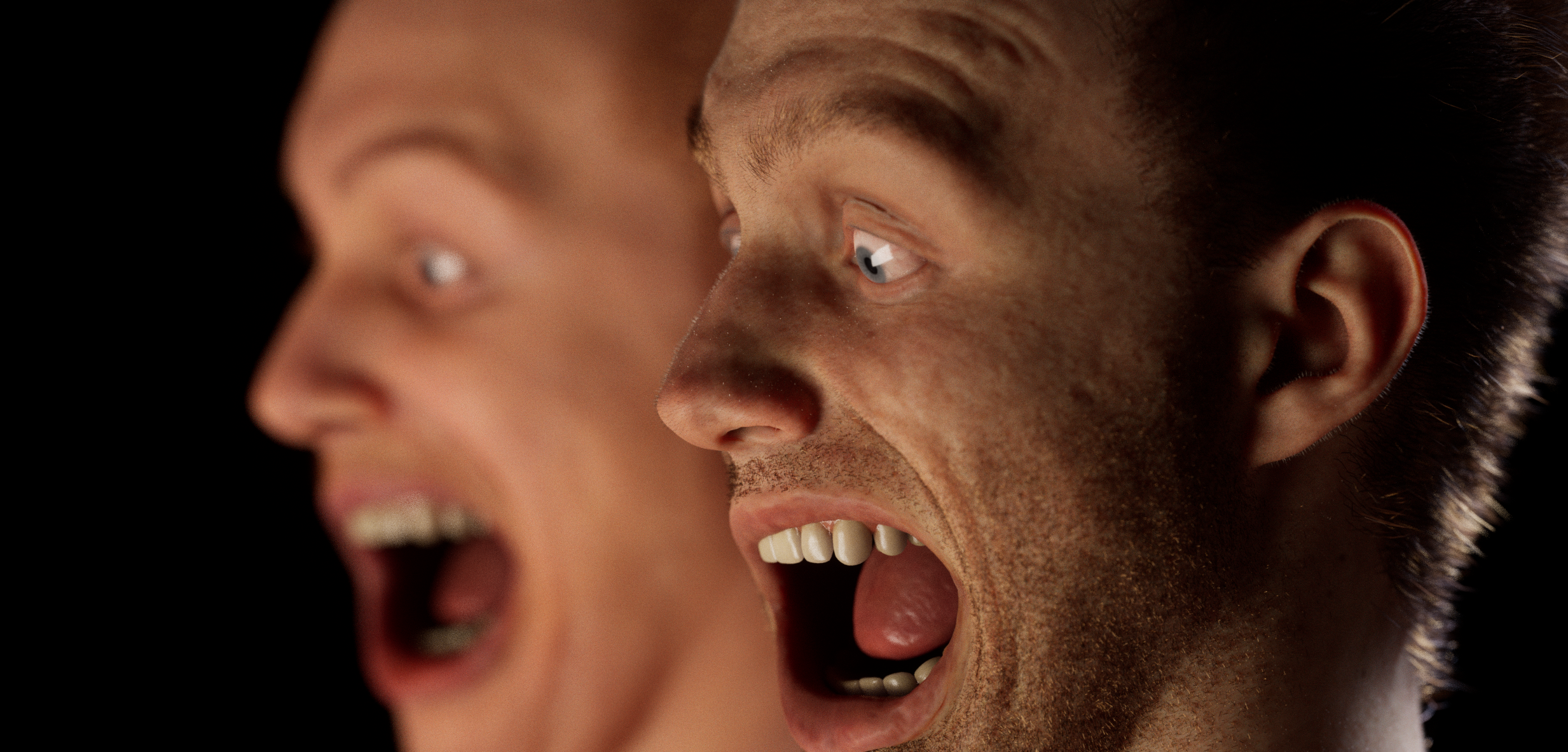
Metahuman Wrinkle Maps
I wanted to do a test where I put everything together for customizing Metahumans.
This project has custom geometry using the Metapipe tools, but I wanted to focus on custom textures to get a closer likeness of the talent. Epic has released two videos on this topic, but there aren’t complete tutorials or step by step instructions that I’ve seen.
Below is a general workflow description.

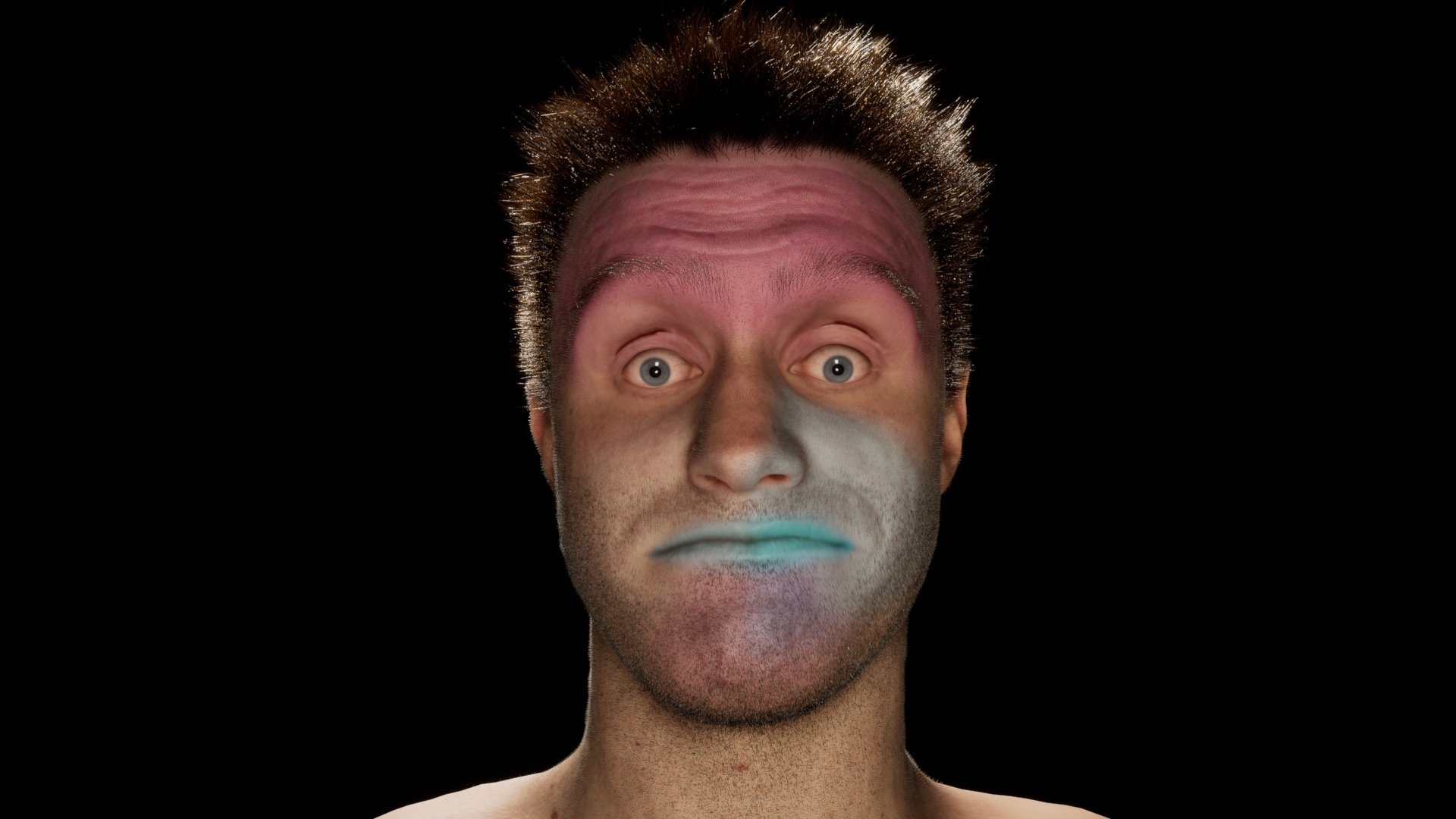
Metahumans come with multiple normal maps to bring out the wrinkle detail when the face hits different expressions.
- Starting with a Scan
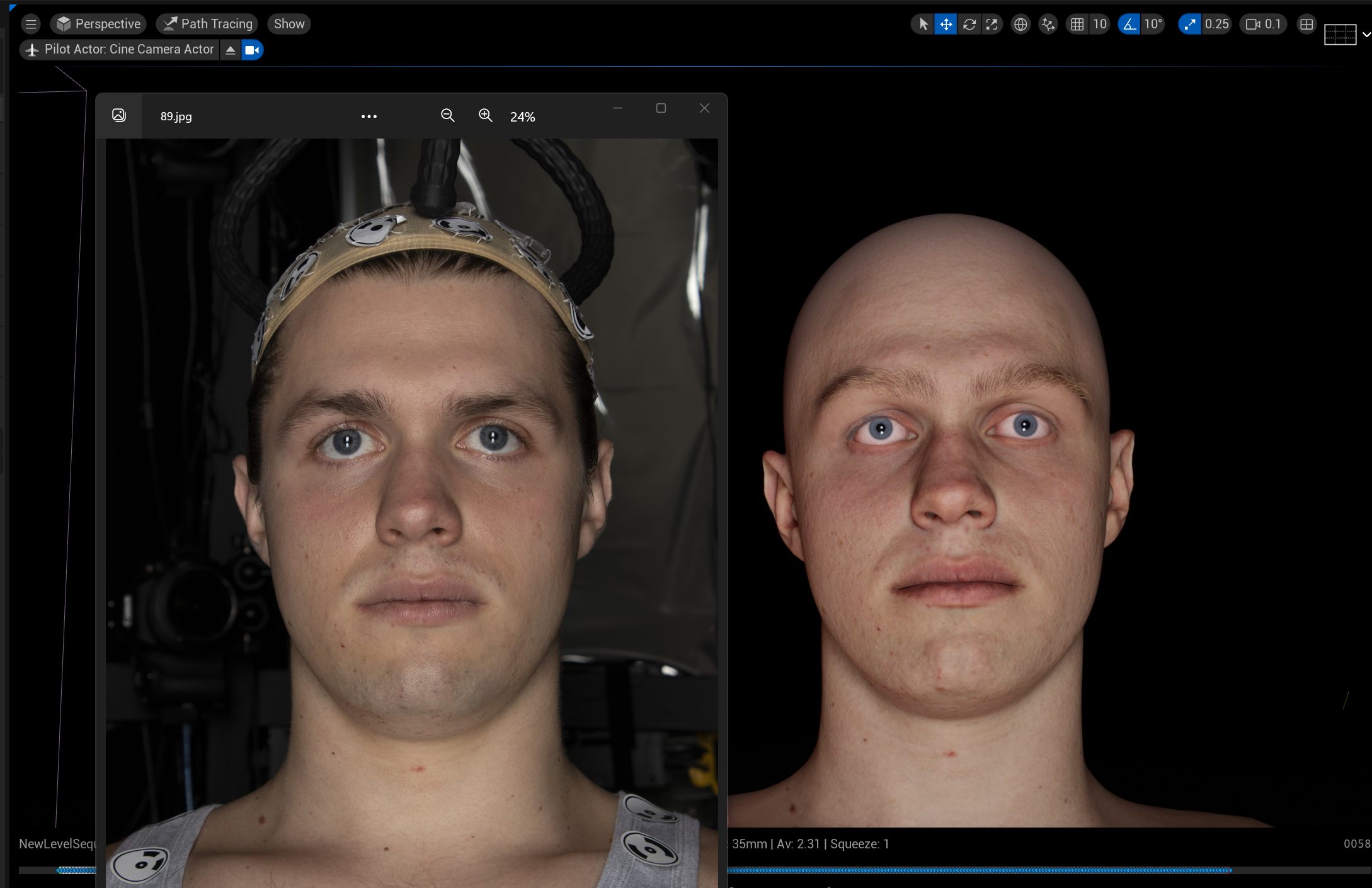
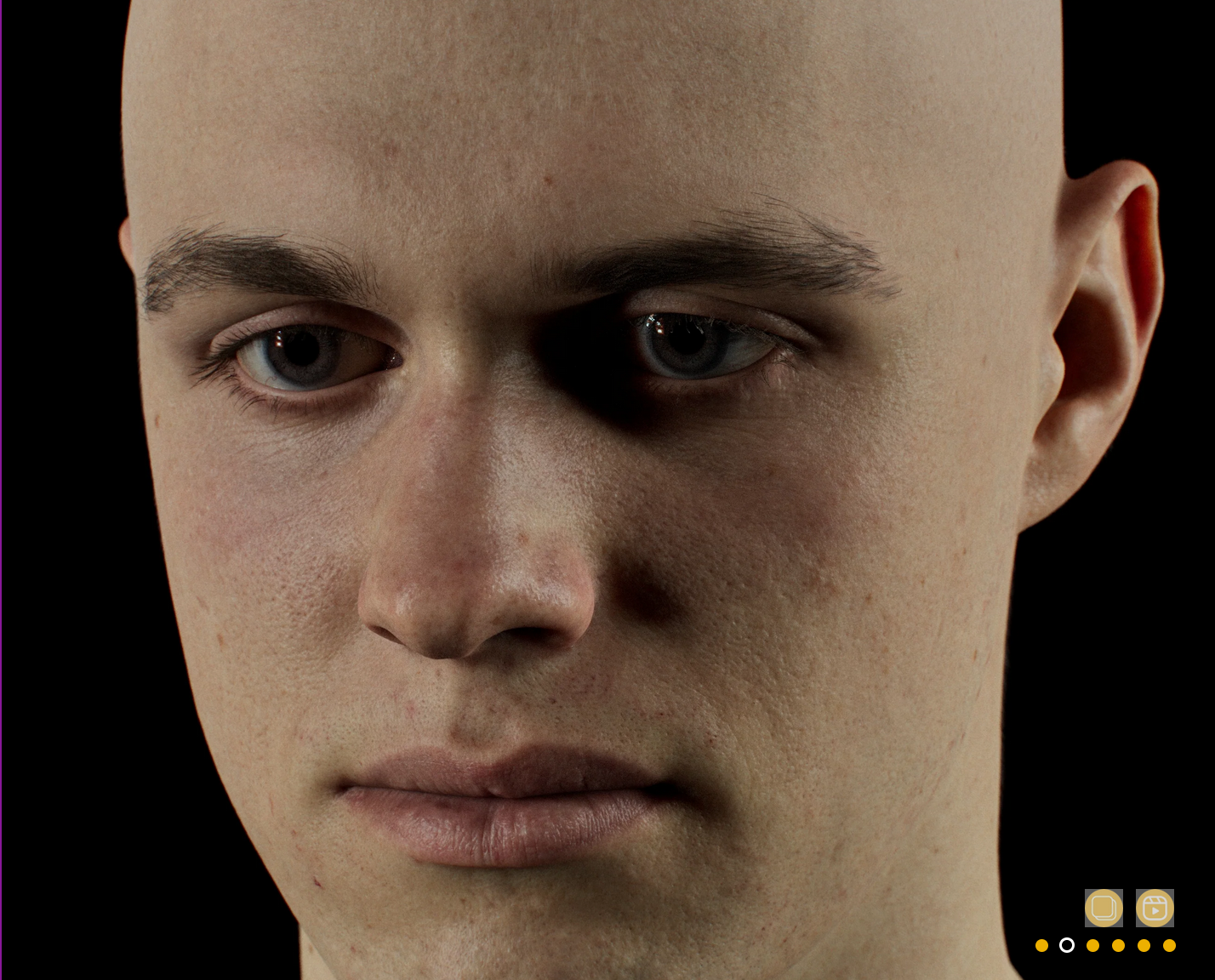
For this test I used a scan from Texturing.xyz’s VFaces. They aren’t too expensive and have very nice flat color maps and high resolution displacement maps. I choose Scan 89. This is a render of what the model looked like, taken from Texturing.xyz’s website. The quality of the scan speaks for itself, it looks great.
2. Mesh to Metahuman
This step isn’t strictly necessary. But I needed to have a Metahuman in my Unreal scene to transfer the rig from. I’m going to have to wrap a Metahuman’s face mesh around the scan, so might as well have a mesh that’s already pretty close from the start.
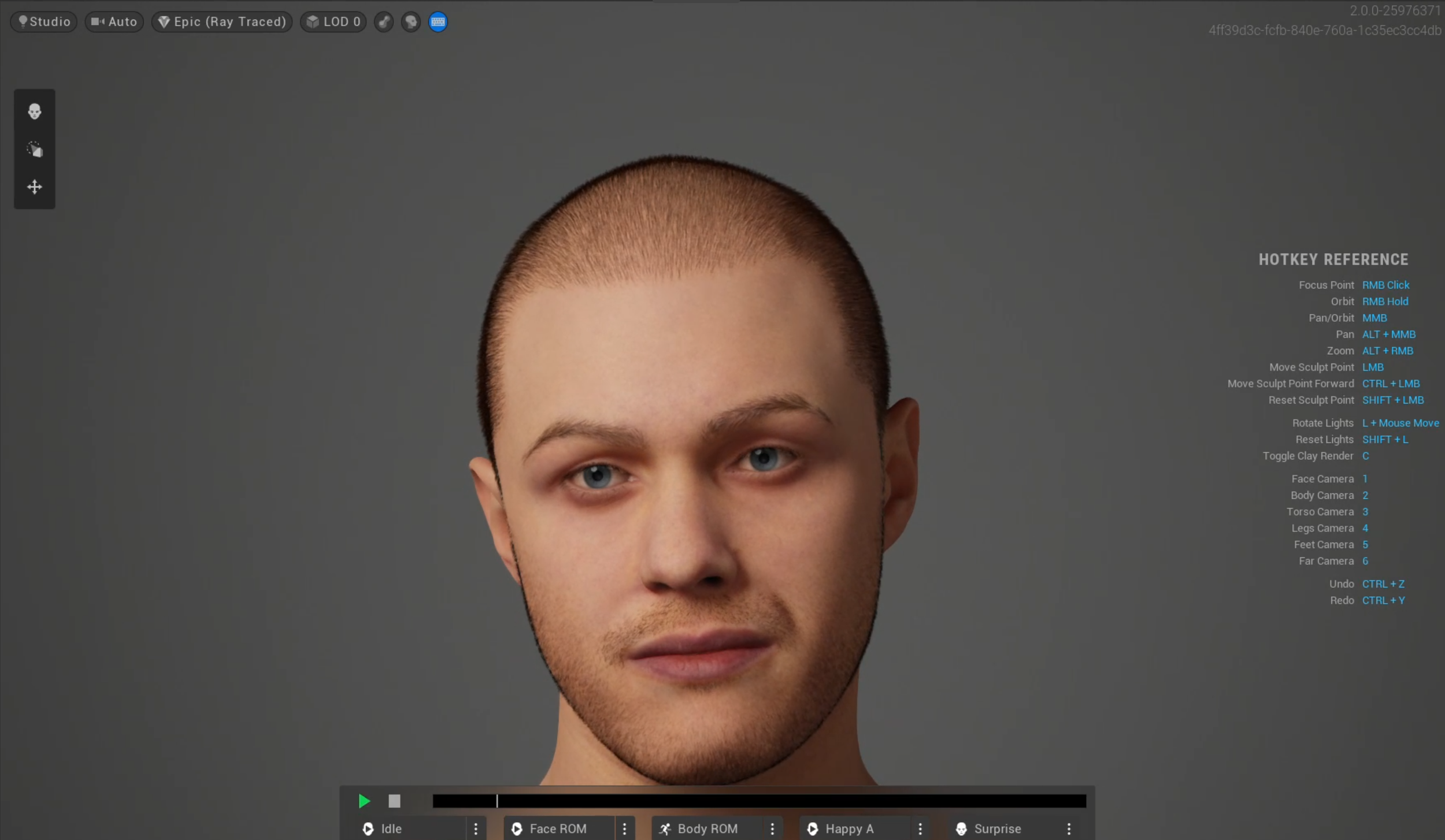
This was as close as I could get with Mesh to Metahuman. The geometry is pretty close to the original, but the textures are generic and hurts the likeness.
3. Wrap Metahuman Face Mesh around Scan Geo
I used Houdini for this, but in the future I will probably look and see if Wrap can handle the eyes better. There are a lot of benefits to keeping it all in Houdini, mostly that Houdini has amazing tools to manipulate the geo before and after the Wrap.
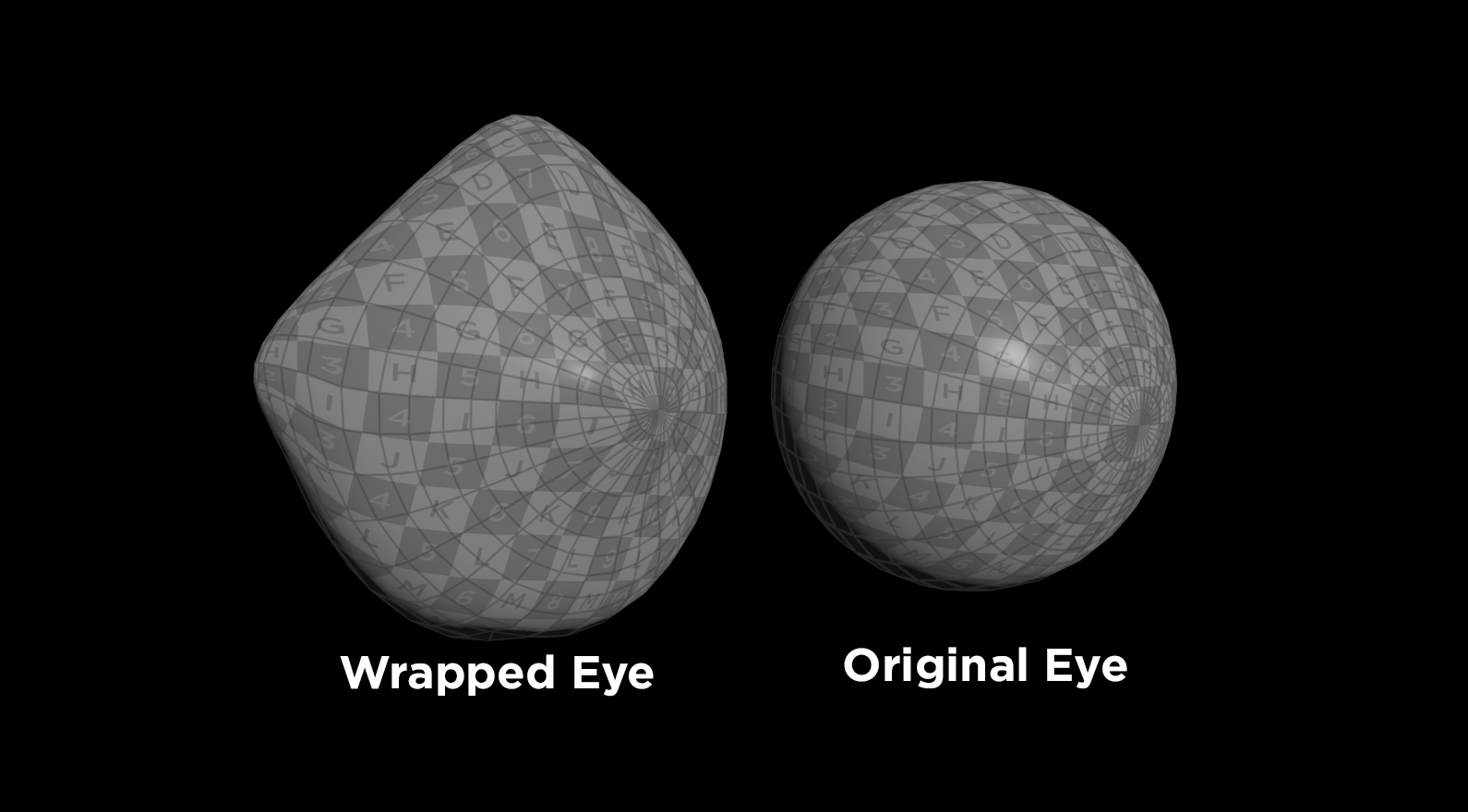
However, when I wrapped the face the eyes got distorted into ovals. This makes it problematic when they’re animated. I’ve tried doing them separately, but then the eyes usually don’t perfectly line up with the face.
In this case, I manually moved the Metahuman eyes into place.

4. Metapipe Workflow and Import to Unreal
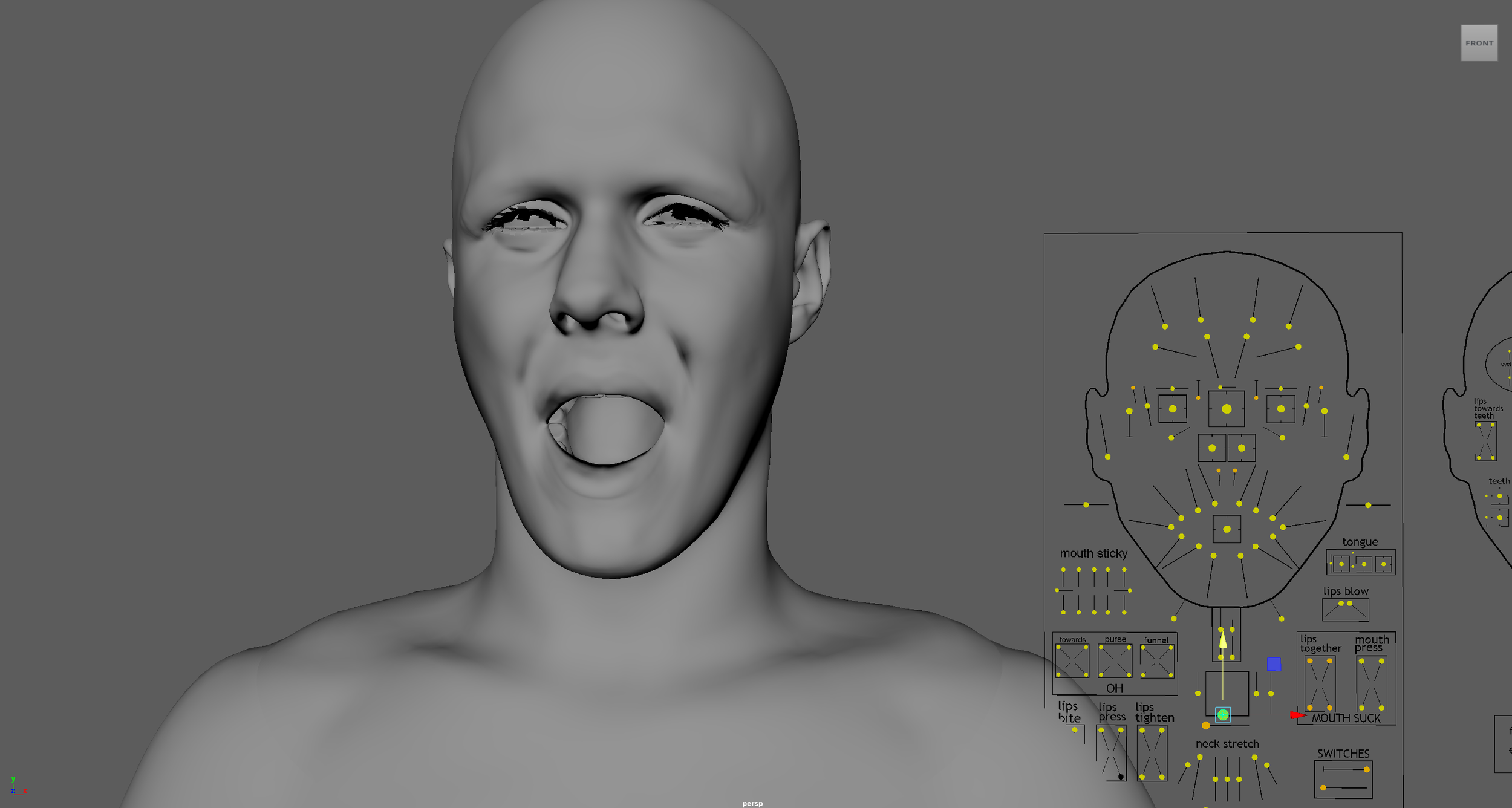
Metapipe is a collection of Python scripts that you run inside of Maya that allows you to transfer the Metahuman facial rig to custom meshes (among other things). The Metapipe workflow is very rough at this stage, but it works. I know the developer is working on improving usability.
I probably could have adjusted the face shape with a blend shape, but I wanted to practice with Metapipe.
Once the new FBX and .dna files were made the new face was brought into Unreal.
5. Transfer Scan textures to Metahuman UVs
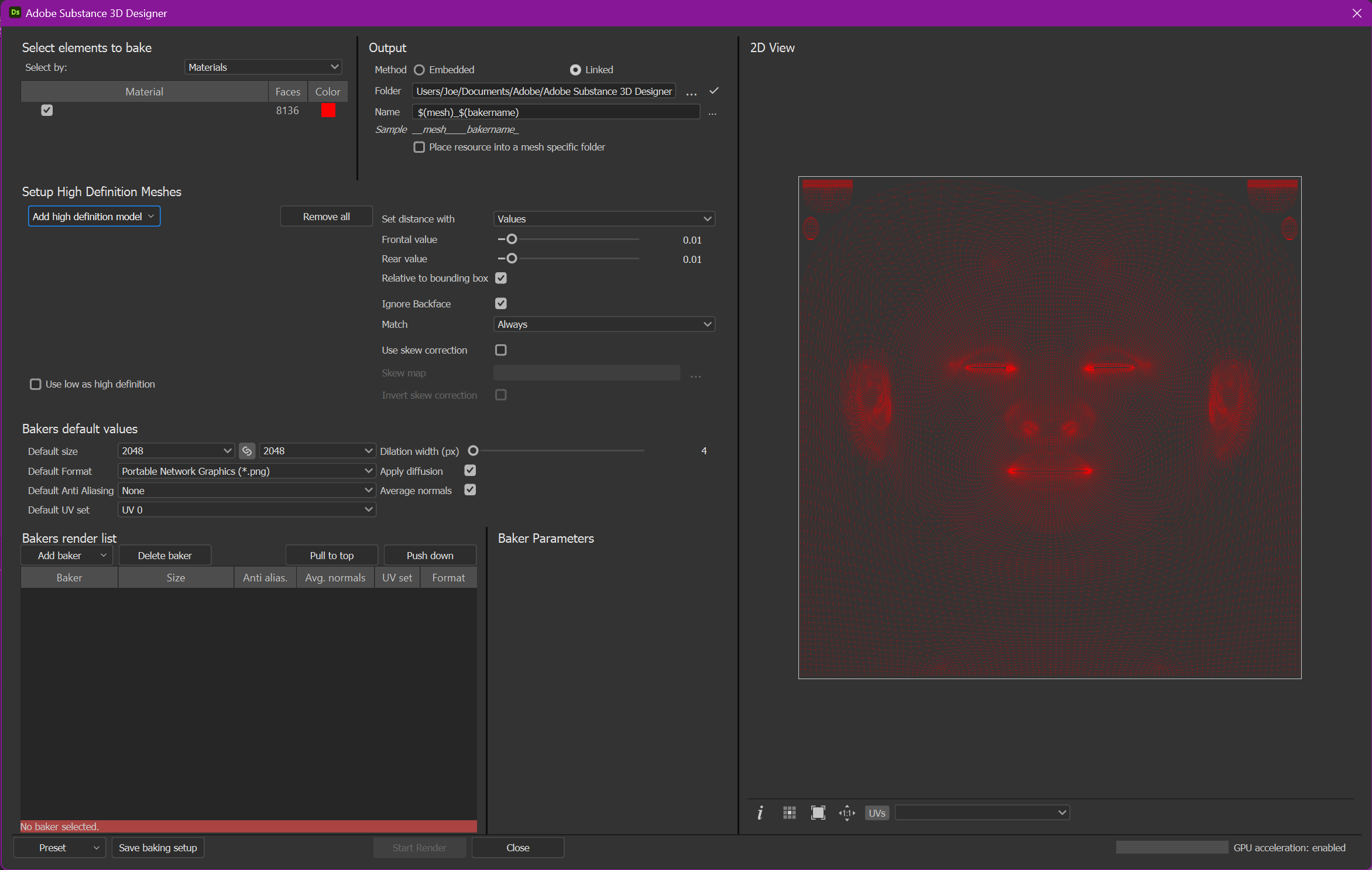
The original color and displacement maps from Texture.xyz needed to be transferred to the Metahuman UV layout. You can use several different software packages for this. I used Substance Designer because it’s very fast for this type of operation.
The Texture.xyz maps are 16K, but I ended up downresing the color to 2K and the displacement/normals to 8K to speed up processing.
6. Export face poses for ZBrush sculpting
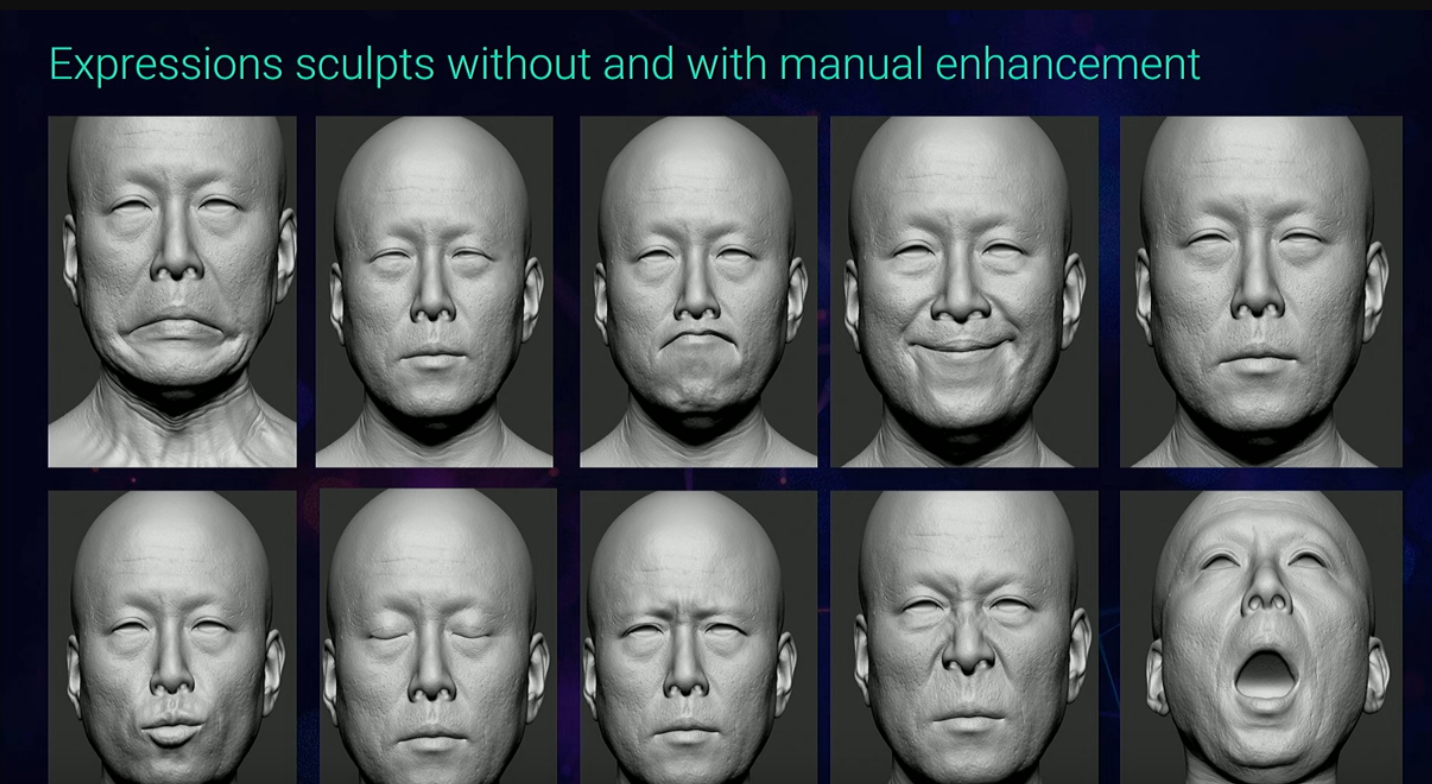
This required some digging around. Metahumans have a base Normal map and three Normal maps for wrinkles. In order to make these, you need to export specific poses into a sculpting DCC where you can sculpt the wrinkles. In this case, it makes sense to use ZBrush for this, which can handle millions of polygons.
It’s tricky to find out what poses you need to export though. This is discussed in the Epic videos about this subject.
It’s confusing since there are three textures for the wrinkles, but in the Epic video they show 10 different expressions. I took my best guess based on what they showed in their presentation.
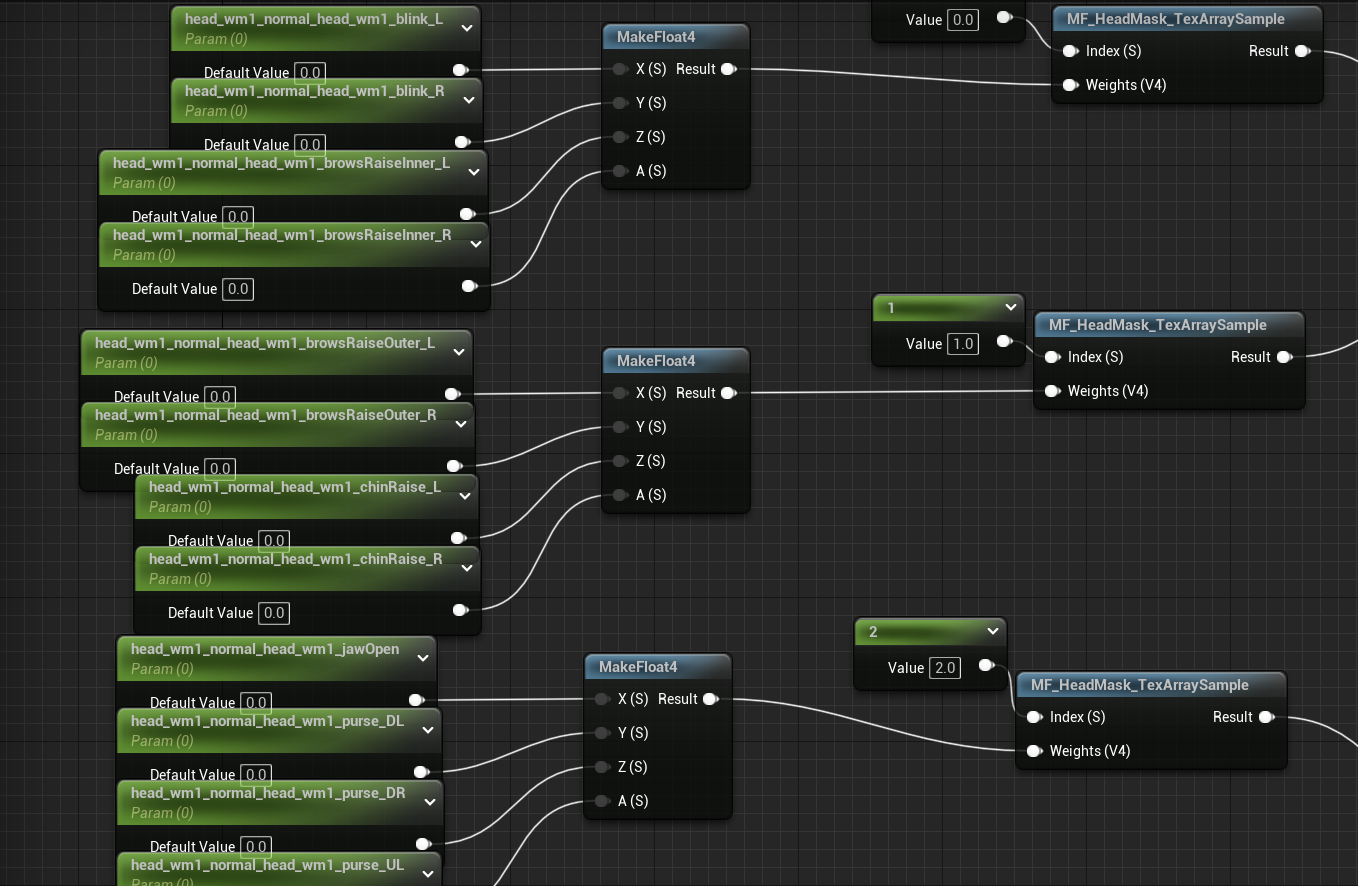
You can also find the face mask controls in the face master material to have a better idea of what poses you need to recreate the wrinkles. It’s annoying since some of the names of the masks are not the same as the names in the Maya rig.

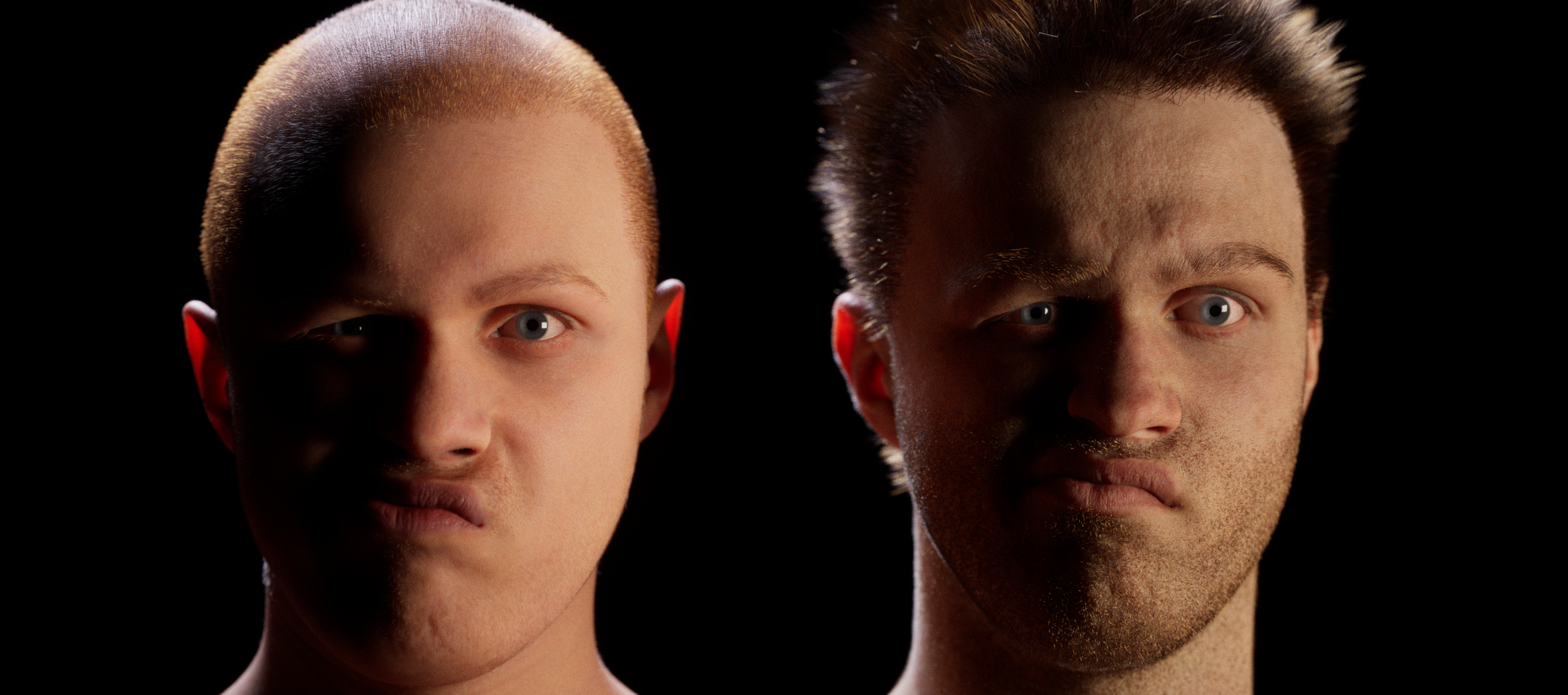
7. Sculpt wrinkles
In ZBrush I loaded in all the exported faces in their different expressions. I applied the VFace displacement and then did my best to sculpt additional wrinkles.
At this stage, Epic’s Metahumans are 26 million polys. For speed, I did one less subdivision so my details are a bit softer.
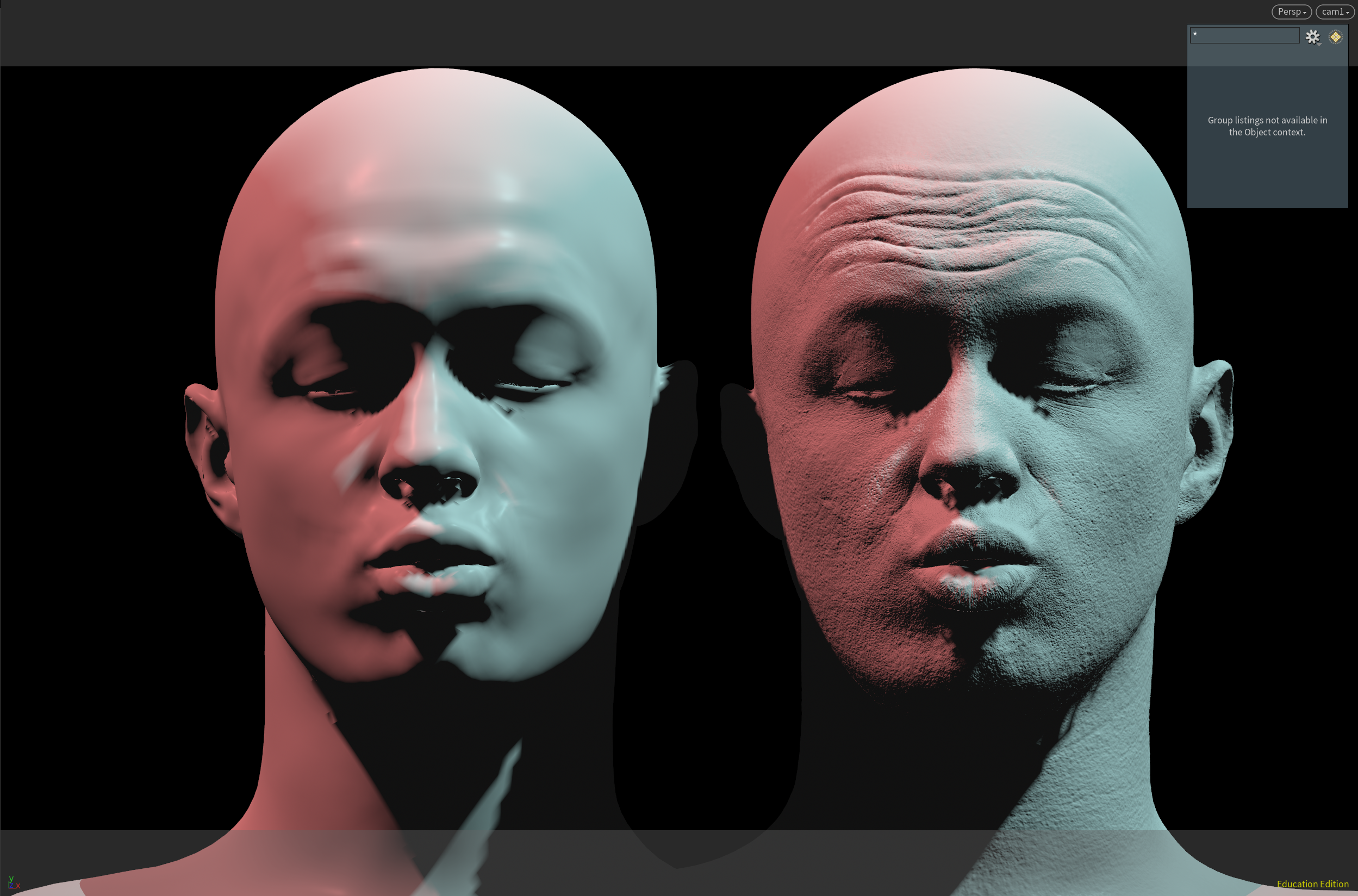
8. Bake Out Normal Maps
The low res and high res geo was brought into XNormal to bake out the Normal maps. This could have been done in many programs, but this is what Epic uses according to their videos on the subject, so I just did what they did.

9. Combine Normals, color correct color maps
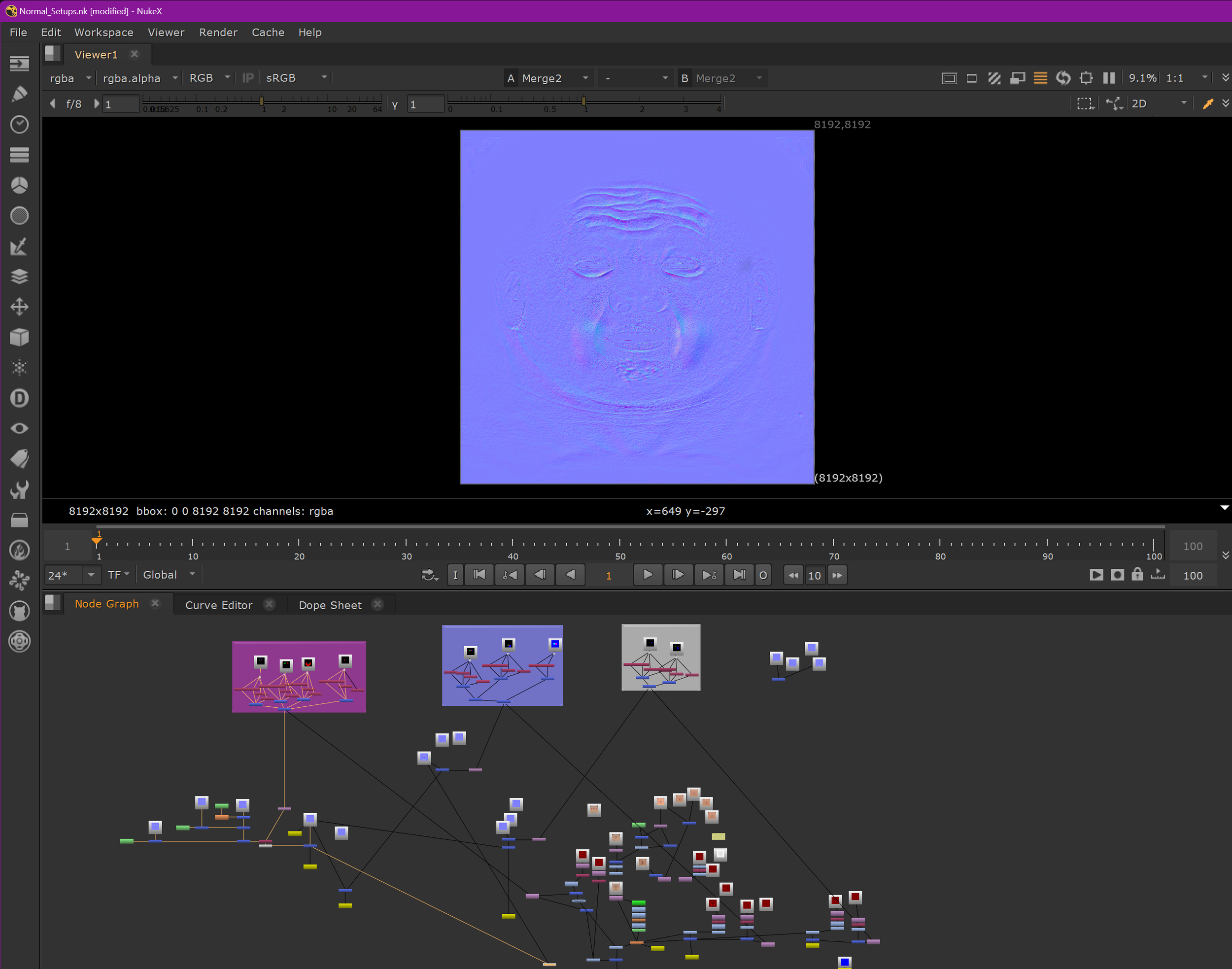
I have a Nuke setup where I blend the expression normal maps with the base normal. I also created a curvature and height map in Substance from the normals. I used this to try to color correct the color maps to have more red areas where blood would go to when certain expressions are hit and to add shadows where wrinkles might occlude light.
10. Grooms
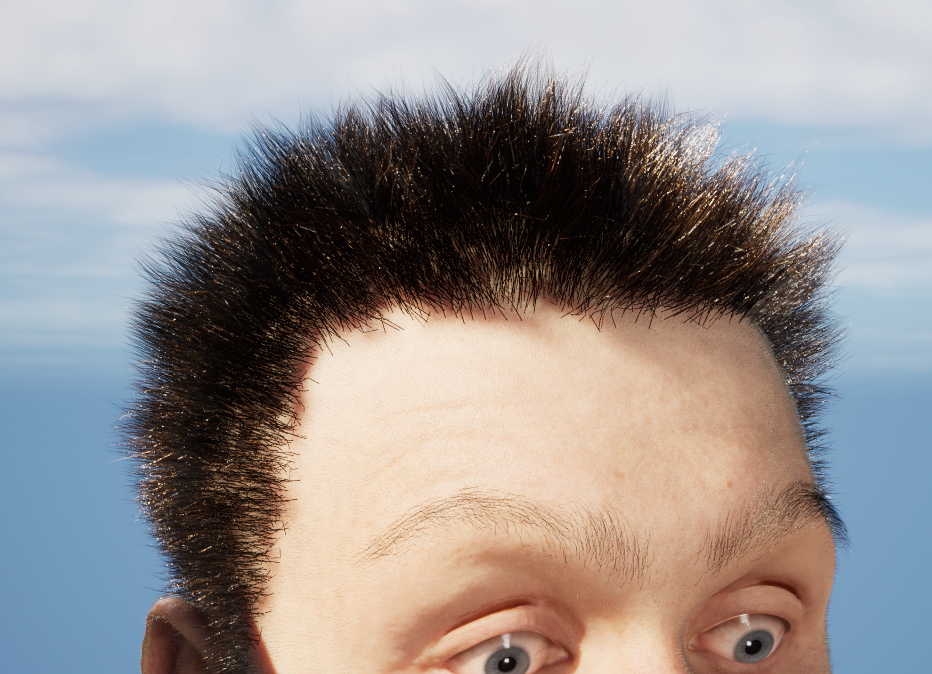
The grooms were made in Houdini. I really like the grooming tools in Houdini, they’re very well thought out. These were rushed out, done in a few hours, and looking at it now I realize that I forgot to do eyelashes. They don’t stand up to close scrutiny but if someone knew what they were doing I think they could make something really nice.
11. Metahuman Animator and Render
Animation was done in MHA, no adjustments.
Rendering was done with the Pathtracer with 512 samples per frame.
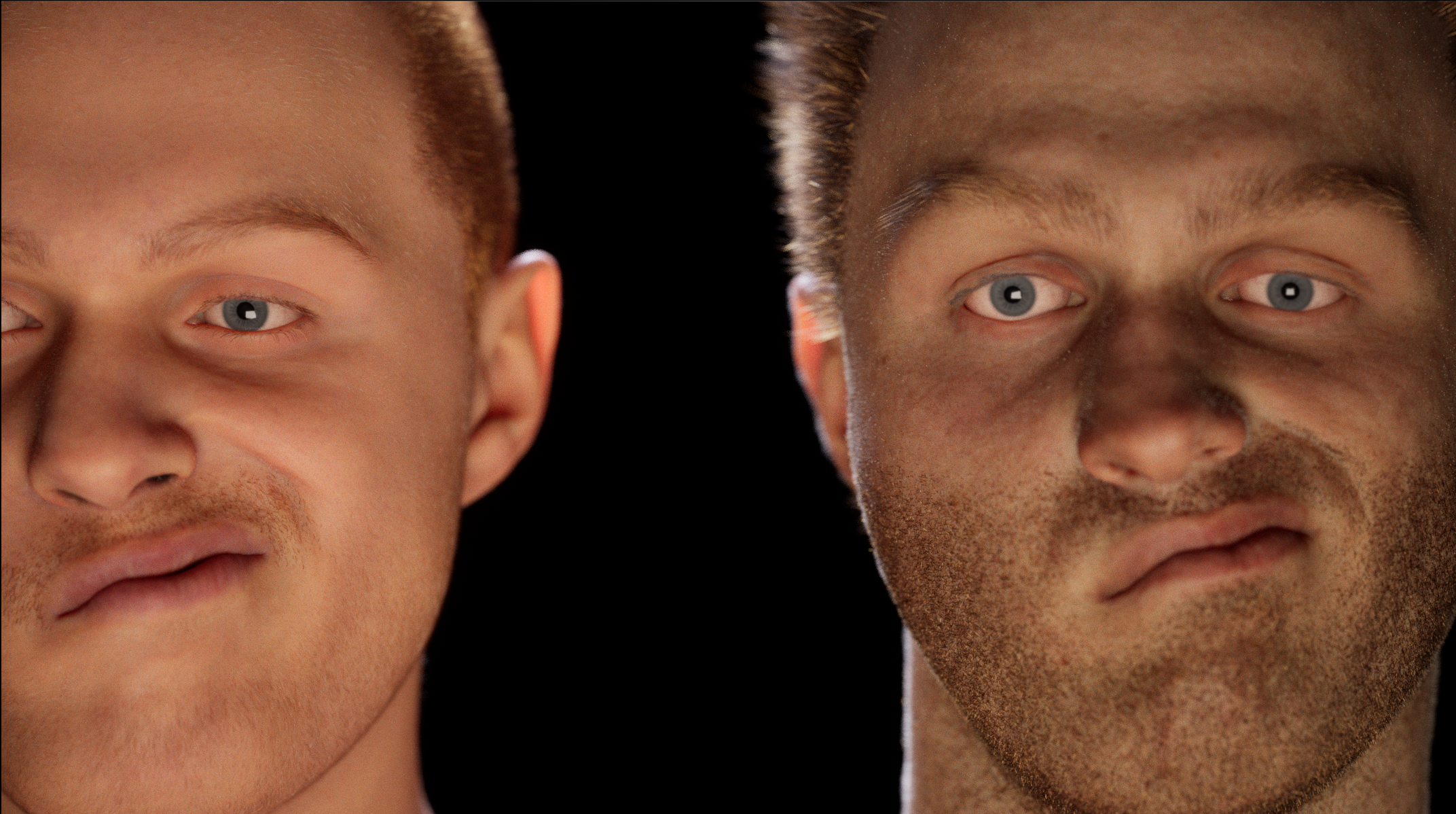
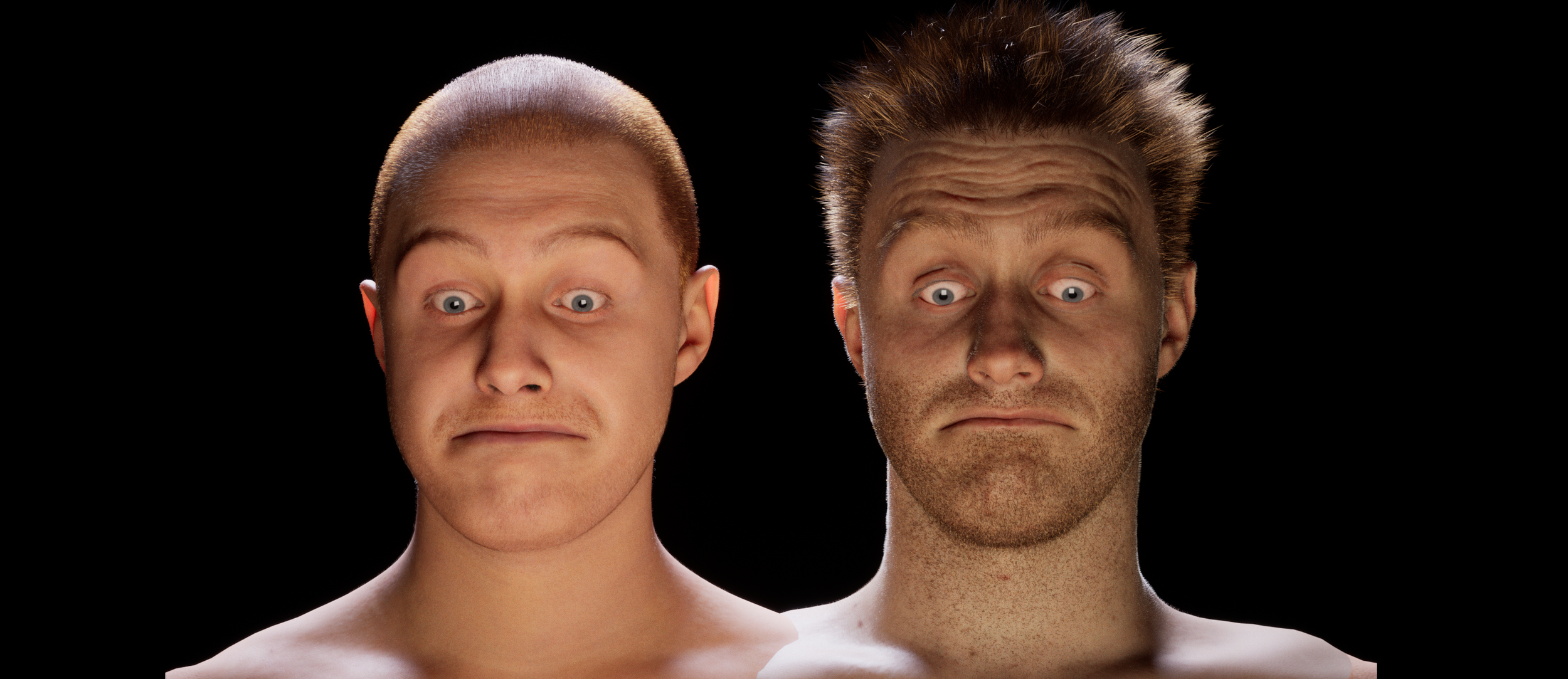
On the left is the original Mesh to Metahuman, on the right is the custom textures with wrinkle maps.
